Image to Sprite Sheet: Read the Frames in Your Image and Export a New Spritesheet
Rearrange existing frames in a PNG, JPG or WebP image into a new sprite sheet. Define the source grid or detect transparent gaps, choose output columns, and download PNG with matching JSON coordinates. Processing stays in your browser. This tool does not generate new poses or remove backgrounds.
- Local processing
- No sign-up
- No watermark

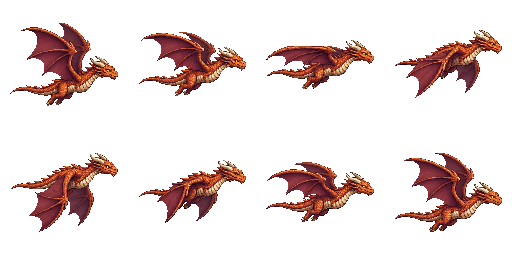

Reads existing poses only. No new animation frames or background removal.
Choose your images or load the sample to begin.
| Input | One PNG, JPG or WebP containing existing frames; up to 20 MB |
|---|---|
| Source size | 8192 px per axis; 32,000,000 pixels |
| Source frames | Grid, fixed frame size or transparent gaps; up to 256 frames |
| Output layout | 1–256 columns; rows calculated automatically |
| Padding and spacing | 0–64 px each for source and output |
| Artwork | Original pixels retained without scaling; no new poses or background removal |
| Export | PNG sheet, JSON atlas, or ZIP with import instructions |
| Output size | 8192 px per axis; 32,000,000 pixels |
Check the illustrated PNG-frame example: source frames, finished PNG, matching JSON, or follow the guide. Phaser loads the atlas; Unity and Godot use their own slicing workflow.

How to check that your artwork stays local
- Open your browser’s Network panel and clear its request list after the page loads.
- Choose a non-sensitive test image or GIF in the matching tool, change the layout, and export it.
- Inspect any new requests: selected artwork should not be sent in a request body. Page assets and consented analytics are separate from artwork processing.
This is a check you can repeat, not an independent security audit or a promise of offline availability. Save your exports before leaving the page.
How to Turn an Image Into a Sprite Sheet
Open Your Image
Choose one image: a static PNG, JPG, or WebP containing several existing frames. A horizontal animation strip or a regular grid works best. The file is read locally and is not uploaded.
Detect Frames or Set the Grid
Use the source rows and columns, enter a fixed frame width and height, or try transparent-gap detection. Check that each region contains one pose. If detection finds only one region, switch to a manual grid rather than treating a single character as an animation.
Reorder Frames, Columns, Spacing and Padding
Move the read frames into playback order and choose the output column count. Source settings describe your input; output padding and spacing describe the new sheet. Changing the output layout does not stretch the artwork.
Preview and Export
Play the sequence to check alignment and order, then download the new PNG and matching JSON coordinates. The ZIP includes both files and the selected engine import guide. Save the export before closing the tab.
Reading Frames From a Single Image
Row-and-Column Grid
Enter the rows and columns that are actually present in the source. Padding removes the outer border, while source spacing excludes gaps between cells. Whole-pixel boundaries are used, so an unevenly divisible grid can produce neighboring regions differing by one pixel.
Fixed Frame Size
For a strip of known-size poses, enter the frame width and height in pixels. The dimensions must match complete cells in the source layout, including any source padding and spacing. Correct a mismatch instead of silently discarding a partial edge frame.
Empty Transparent Rows and Columns
Gap detection scans transparent separator rows and columns. It does not understand poses or character silhouettes. Only one detected region usually means the frames touch, the background is opaque, or the image contains a single pose. The tool then asks you to use a manual grid and keeps export disabled until you confirm a usable layout.
What This Tool Does Not Do
It does not generate movement from one character pose. Every exported frame comes from a region already present in your source image. Reordering those regions can change playback order, but it cannot add missing poses or interpolate motion.
It does not remove backgrounds. Existing alpha pixels are preserved from PNG or WebP inputs; an opaque JPG background stays opaque. It is not an AI image generator or a content-recognition system, and it cannot reliably recover an arbitrary irregular atlas without its original region information.
Output: New PNG and JSON Atlas
The output PNG places the read frames into a new regular layout. Smaller regions are centered inside a common cell without scaling, which keeps the sheet dimensions and origin consistent. Use equal-size source cells whenever possible to keep feet and other anchor points steady.
The JSON maps unique frame names to x, y, width, and height values in that exact PNG. It includes unrotated, untrimmed regions. A JSON file stores coordinates; your engine still needs to load the image and configure animation timing.
Limits and Supported Files
Open one static PNG, JPG, or WebP up to 20 MB. The current limits are 256 read frames, an 8192-pixel maximum image or output dimension, and 32 million pixels in the source and output budgets. Invalid dimensions or grids show an error before export.
An animated source needs a different reader. This tool reads regions from a static image and does not decode GIF timing or video files.
Import Into Unity, Godot, GameMaker and Phaser
Phaser can load the included JSON atlas with the PNG. Unity, Godot, and GameMaker use their own texture, region, or strip import workflow. Choose a preset for matching instructions; a preset is not a universal editor plugin. Set the same animation order and speed you checked in the preview.
Image to Sprite Sheet FAQ
How do I turn an image into a sprite sheet?
Open one image containing multiple existing poses. Read it using source rows and columns, a fixed frame size, or transparent gaps, then adjust order and output layout. Preview the sequence and export the new PNG and JSON.
Are my images uploaded to a server?
No. Source reading, frame extraction, rearrangement, and export run in this browser tab. There is no cloud save of your artwork. Download the result before refreshing or closing the page.
What kind of image works best?
A horizontal strip, vertical strip, or regular grid of equal-size animation cells works best. Keep the character at a consistent position within each cell. Transparent gaps help only when you choose gap detection.
What if it only detects one frame?
Switch to rows and columns or fixed frame dimensions and check the source layout. The tool will not guess new poses. Export is disabled after single-region gap detection until you confirm a manual layout.
Does it detect frames in any image?
No. It detects empty transparent separator rows and columns. Touching frames, opaque backgrounds, and irregularly packed atlases may not be suitable. Use known grid settings or the original region metadata for those files.
Can it create new animation frames from one character image?
No. It reads the frames that are already in the image. A single character pose remains a single pose; the tool does not generate, interpolate, or invent motion.
Does it remove the background?
No. Existing transparency is preserved, but opaque backgrounds remain. Changing the output sheet background does not erase the background inside a source region.
Can I change the frame order, columns, spacing and padding?
Yes. Reorder the existing frames and choose the output columns, outer padding, and spacing. The preview and exported coordinates are calculated from those settings together.
What do I get when I export?
A new PNG sprite sheet and matching JSON atlas. The ZIP includes those files and the selected engine import guide. For separate frame PNGs, use the splitter linked above.
Is it free? Do I need an account?
The current tool is free, needs no account, and adds no watermark. It runs on your device and has no checkout or upload step.