GIF to Sprite Sheet: Convert an Animated GIF Into a Spritesheet
Convert an animated GIF into a PNG sprite sheet locally in your browser. Preserve existing transparent areas and frame delays, select frames, and set columns, padding and spacing. Download the PNG, timing-aware JSON atlas or individual frames in a ZIP. Free, with no sign-up or file upload.
- Local processing
- No sign-up
- No watermark

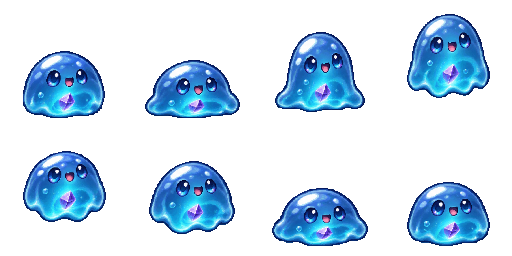
Choose a GIF or try the bundled sample.
| Input | GIF87a or GIF89a; up to 20 MB; no video input |
|---|---|
| Source frames | Up to 256; decoded canvas budget: 32,000,000 pixels |
| Frame size | GIF logical canvas; up to 8192 px per axis |
| Layout | 1–256 columns; rows calculated automatically |
| Padding and spacing | 0–64 px each |
| Timing | Original delays, fixed 1–60 FPS, or every 1–256 frames |
| Export | PNG sheet, timing-aware JSON, or ZIP including individual PNG frames |
| Output size | 8192 px per axis; 32,000,000 pixels |
Check the illustrated PNG-frame example: source frames, finished PNG, matching JSON, or follow the guide. Phaser loads the atlas; Unity and Godot use their own slicing workflow.

How to check that your artwork stays local
- Open your browser’s Network panel and clear its request list after the page loads.
- Choose a non-sensitive test image or GIF in the matching tool, change the layout, and export it.
- Inspect any new requests: selected artwork should not be sent in a request body. Page assets and consented analytics are separate from artwork processing.
This is a check you can repeat, not an independent security audit or a promise of offline availability. Save your exports before leaving the page.
How to Convert a GIF to a Sprite Sheet
Upload Your GIF
Choose a GIF87a or GIF89a file, or load the sample animation. The converter reads its logical canvas and frame data in your browser. A GIF can store only a small changed region for each step, so reading every image block as a separate full frame would give the wrong result.
Choose How Frames Are Sampled
Keep the original frames and delays, sample the timeline at a fixed FPS, or retain every Nth frame. Check the selected frame count and total duration. Sampling may repeat a pose or leave one out; it does not invent in-between drawings.
Preview and Export
Play the selected sequence before exporting. Reverse the order if you want the poses to run backward. Choose a sheet layout, then download PNG and JSON or a ZIP containing those files and the individual frame PNGs.
What Happens to Each GIF Frame
Frame Disposal and Transparency
The decoder composites each partial image onto the logical canvas before capturing a complete pose. Keep disposal leaves previous pixels in place. Restore-to-background clears the previous frame’s region as specified; restore-to-previous restores the canvas saved before that frame. Transparent patch pixels do not erase existing pixels by themselves.
PNG output preserves the resulting alpha channel. This reproduces the decoded GIF; it does not remove an opaque background or restore detail lost when the GIF was created.
Frame Delay and Sampling
GIF frame delays are stored in hundredths of a second. Original mode keeps the decoded delays, with a practical default for zero or missing delays. Fixed-FPS mode samples the animation timeline at regular intervals. Every-Nth mode carries the skipped frames’ time into the retained frame so the total playback duration is preserved.
Reversing Frame Order
Reverse changes the sequence of complete frames. Each frame keeps its associated duration. The tool changes neither its pixels nor its resolution; a reversed walk cycle is still made from the poses already in your GIF.
Output: Transparent PNG, JSON Atlas and Frame PNGs
The sheet is a PNG containing complete composited frames in row-major order. The JSON records each frame name, pixel rectangle, and duration in milliseconds. The ZIP also contains the separate PNG frames, so you can use them without reading an atlas.
Changing the number of columns, padding, or spacing changes both the sheet and its matching JSON coordinates. Empty cells in the final row are not exported as named animation frames. Use the frame durations in an animation system that supports variable delays.
"frame_000.png": {
  "frame": { "x": 0, "y": 0, "w": 48, "h": 48 },
  "duration": 120
}
Limits and Supported Files
This converter accepts GIF87a and GIF89a files only. It checks file size, logical dimensions, image blocks, and decoded pixel budget before producing the frame set. Oversized or malformed animations show a readable error instead of silently exporting a partial sheet.
The first release allows a GIF up to 20 MB, 256 source frames, an 8192-pixel maximum dimension, and 32 million logical-canvas pixels across the source frames. Sampling must also fit the output frame and sheet limits. A small image with many frames can reach the total-pixel budget before it reaches the file-size limit.
Import the Result Into Unity, Godot, GameMaker or Phaser
Unity
Import the PNG as Sprite (2D and UI) with Multiple mode, then define the cell regions in Sprite Editor. Match the spacing and offset shown by your export. Set up the animation timing separately; a PNG sheet itself does not carry playback speed.
Godot
Use the sheet in an AnimatedSprite2D SpriteFrames resource. A uniform grid with no padding can use the sheet frame selector. For other layouts, use explicit texture regions from the JSON and set animation timing for your selected sequence.
GameMaker
Import the PNG as a strip using the cell dimensions and separation in the export guide. Check that subimages follow the preview order. Use your GameMaker version’s animation timing controls to reproduce the selected frame delays.
Phaser
Load the PNG and JSON together with this.load.atlas. Use the named frames in the JSON to build an animation. Configure timing from the exported durations; variable frame delays are metadata, not a promise that every importer will apply them without configuration.
Why Use a Sprite Sheet Instead of the GIF
A sheet gives your game explicit frame rectangles and lets the engine control playback. Many 2D workflows expect textures and frame coordinates rather than a GIF decoder. Keeping poses together also makes it easier to inspect order, dimensions, and transparency.
A sprite sheet is not guaranteed to be smaller than the source GIF. PNG file size depends on canvas dimensions, colors, and repeated areas. Use the format that matches your engine and measure the final asset size in your own project.
GIF to Sprite Sheet FAQ
How do I convert a GIF to a sprite sheet?
Open the GIF, select a sampling mode, and check the preview. Set the output columns and spacing, then export the PNG and matching JSON. The ZIP adds the individual composited frame PNGs.
Does my GIF get uploaded to a server?
No. The selected file is decoded, composited, and exported in your browser. There is no image upload endpoint in this workflow, and the animation is not saved as a cloud project. Download your files before closing or refreshing the page.
Will the transparency of my GIF be preserved?
The decoder follows the GIF’s frame disposal and transparency information, then captures complete frames as PNGs with alpha. An opaque background in the GIF remains opaque. The tool does not improve the source resolution or add missing color detail.
How many frames can I convert?
The current limit is 256 source frames, up to 20 MB per GIF, with a combined decoded pixel budget of 32 million. Large logical dimensions can hit that budget with fewer frames. Output sampling and sheet dimensions are checked too.
Can I change the frame rate?
Yes. Choose original frame delays, fixed-FPS timeline sampling, or every-Nth-frame sampling. The selected count, frame delays, and total duration are shown before export. Fixed FPS can repeat or skip existing frames.
Can I use an MP4 or a video?
No. This release reads GIF files only. Convert your source to a GIF in a separate tool first, or use the image converter if you already have a static animation strip.
What files do I get when I export?
A PNG sprite sheet, a JSON atlas with frame coordinates and durations, and individual PNG frames inside the ZIP. If you later need to extract different regions from an existing sheet, use the sprite sheet splitter.
Is it free? Do I need an account?
The current converter is free, requires no account, and adds no watermark. Your device performs the decoding and export. There is no checkout step.